leobot
User Guide
This user guide has been adapted from [SE-EDU’s AddressBook-Level3].
Leo is a desktop app for managing tasks, deadlines and events, optimized for use via Command-Line Interface (CLI) with a Graphical User Interface (GUI) reminiscent of the 2022 World-Cup winning Argentinian jersey. If you can type fast and want to keep track of the important things in your life, Leo has your back.
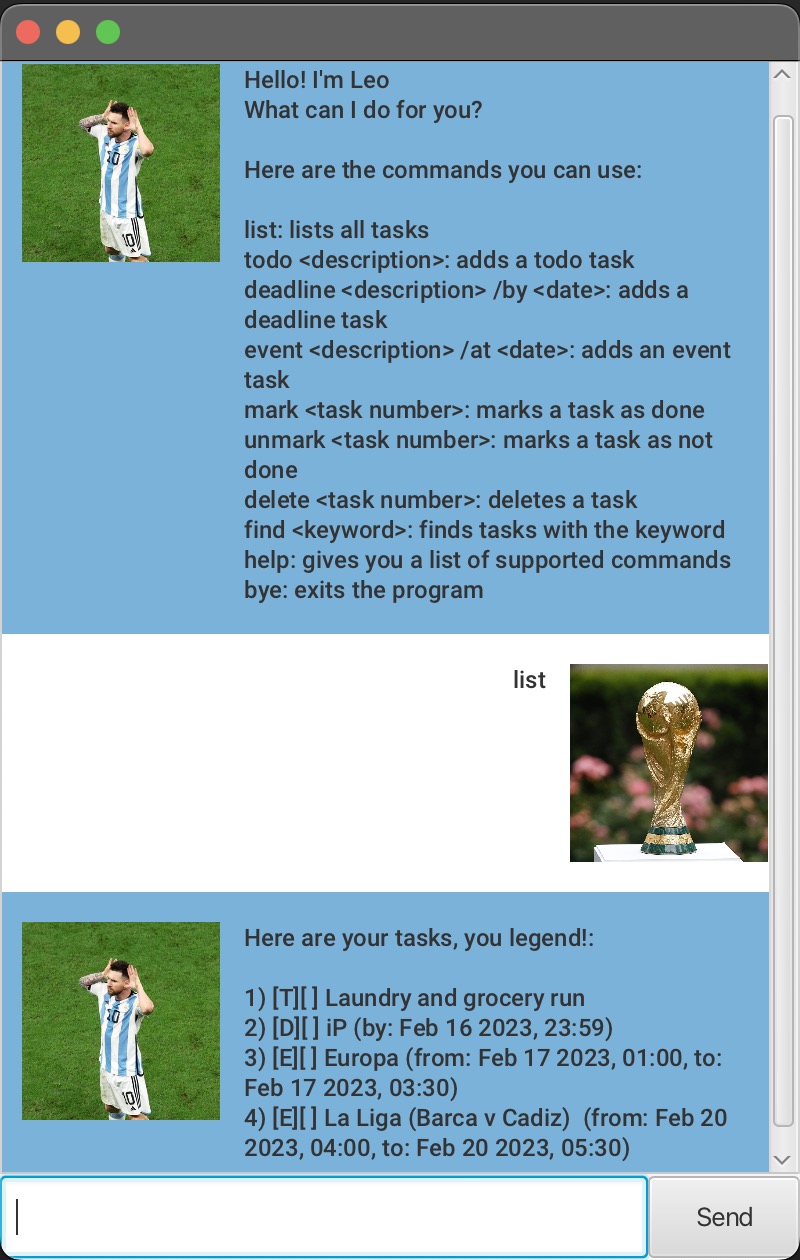
Quick Start
- Ensure you have Java
11or above installed in your Computer. - Download the latest
leo.jarfrom here - Copy the file to the folder you want to use as the home folder for your Leo.
- Open a command terminal,
cdinto the folder you put the jar file in, and use thejava -jar leo.jarcommand to run the application. - Type the command in the command box and press Enter to execute it.
- Refer to the Features below for details of each command.
- Enjoy 😄
Features
:information_source: Notes about the command format:
- Words in
UPPER_CASEare the parameters to be supplied by the user.
e.g. intodo CONTENT,CONTENTis a parameter which can be used astodo test.
Viewing Help : help
Command: help
Shows a message explaining the list of commands available to a user and how to use them.
Adding a todo task: todo
Command: todo CONTENT
Adds a todo task to the task list.
Adding a deadline task: deadline
Command: deadline CONTENT /by DATE
Adds a deadline task to the task list. This feature is intended to keep track of deadline-based tasks
Adding an event task: event
Command: event CONTENT /from DATE /to DATE
Adds an event task to the task list. This feature is intended to keep track of event-based tasks
Listing all tasks: list
Command: list
Shows a list of all tasks in the task list.
Marking a task as done: mark
Command: mark INDEX
Marks the task at the specified INDEX as done.
Marking a task as not done: unmark
Command: unmark INDEX
Marks the task at the specified INDEX as not done.
Deleting a task: delete
Command: delete INDEX
Deletes the task at the specified INDEX.
Finding tasks by keyword: find
Command: find KEYWORD
Finds tasks in task list whose content contains the specified KEYWORD.
Saving the data
Leo data is automatically serialized and saved in the hard disk after any command that changes the data. There is no need to save manually.
Usage
help - Viewing help
Displays help message to the user with list of available commands.
Example of usage:
help
Expected outcome: Help message with list of available commands.
Here are the commands you can use:
list: lists all tasks
todo <description>: adds a todo task
deadline <description> /by <date>: adds a deadline task
event <description> /at <date>: adds an event task
mark <task number>: marks a task as done
unmark <task number>: marks a task as not done
delete <task number>: deletes a task
find <keyword>: finds tasks with the keyword
help: gives you a list of supported commands
bye: exits the program
list - Listing all tasks
Displays all tasks in the task list.
Example of usage:
list
Expected outcome: Enumerated list of all tasks in the task list.
Here are your tasks, you legend!:
1) T[] Laundry and grocery run.
2) D[] iP Week 6 Submission (by: 17 Feb 2023, 2359)
3) E[] Europa League (Barca vs Man Utd) (from: 17 Feb 2023, 0100, to: 17 Feb 2023, 0330)
todo, deadline, event - Creates a task
Creates a task of the specified type and adds it to the task list.
Example of usage:
todo Laundry and grocery run
deadline iP Week 6 Submission /by 17/12/2023 2359
event Europa League (Barca vs Man Utd) /from 17/12/2023 0100 /to 17/12/2023 0330
Expected outcome: Returns a message indicating that the task has been added to the task list together with the number of tasks in the task list.
Alright, I've added: T[] Laundry and grocery run. to your task list.
You have 1 tasks in your list, vamos, get moving!
mark/unmark - Marks a task as done/not done
Marks the task at the specified index as done/not done.
Example of usage:
mark 1/unmark 1
Expected outcome: Returns a message indicating that the task has been marked as completed/incomplete.
Well done on completing the task! Let me mark that as done! Campeon del mundo! T[X] Laundry and grocery run.
delete - Deletes a task
Deletes the task at the specified index.
Example of usage:
delete 1
Expected outcome:
Returns a message indicating that the task has been deleted from the task list together with the number of tasks in the task list.
Alright, I've removed: T[X] Laundry and grocery run. from your task list.
You have 2 tasks in your list, vamos, get moving!
find - Finds tasks by keyword
Finds tasks in task list whose content contains the specified keyword.
Example of usage:
find Laundry
Expected outcome: Returns a message indicating that the task has been deleted from the task list together with the number of tasks in the task list.
Here are the matching tasks in your list:
1) T[X] Laundry and grocery run.
bye - Exits the program
Exits the program.
Example of usage:
bye
Expected outcome:
Returns a message indicating that the program has been exited.